9 Modes
A mode is a small program the device loads from its storage and runs inside the MIDI path. Modes can modify the MIDI that flows through the device and even generate their own, allowing the Operator to perform infinite MIDI related things: clocks, arpeggiators, retuners, etc.
Modes, when loaded into a slot, can be configured from their parameters page or in custom interfaces for those that support them.
The Operator ships with 13 modes, each described in Chapter 10 Modes can also be added or updated at any time without flashing the device software, which is covered in Chapter 11
9.1 Global and output modes
Modes have two categories: global and output. The difference is where in the MIDI path they sit.
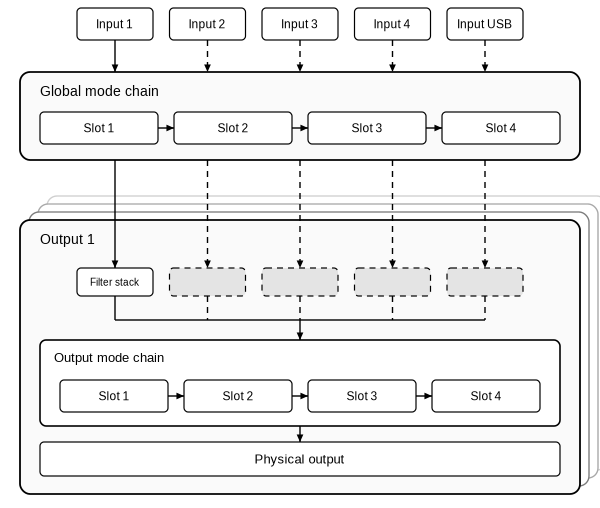
A global mode runs before routing, on everything that arrived from all inputs at once. It sees the whole incoming MIDI stream and it can add messages to it, which is why clocks, sequencers and other generators are global modes. There is one global chain for the whole device, and it is reached by Entering Modes in the main menu.
An output mode runs after routing, and sees just the messages that passed the routing filters. Transposers, quantizers and velocity curves are typical output modes. Every output has its own chain, so the same mode can be loaded on multiple outputs and set up differently in each. An output’s chain is reached from the Modes menu inside an output’s configuration screen, covered in Chapter 5
Because global and output modes sit in different places, they are stored separately. The mode browser only shows mode files for the kind of chain it was opened from, so it is not possible to load the wrong kind into a slot by accident.
9.2 Mode slots and pool size
Each mode chain holds four slots. Modes run in the order given by their position in the chain, and each one hands its result to the next.

Modes take a certain amount of RAM when they load, shown on the Pool indicator at the top of each mode chain. This pool is shared across the device, so modes can be loaded as long as there is space left in it. Modes usually take very little RAM, so the pool rarely runs out during normal operation. The device refuses to load a mode that takes more RAM than the pool has left.
9.3 Loading a mode
To load a mode into the global chain:
- Open the main menu and Enter Modes. The four global slots appear.
- Scroll to an empty slot and Enter it. The browser opens, listing the global modes installed on the device.
- Scroll to the one to load and Enter it.
The browser closes and the chain screen comes back with the mode’s name in the slot. Loading an output mode is the same process, starting from the Modes menu inside an output configuration screen.
If no modes are found on the device, the browser shows an empty list with a (no modes) message. Putting mode files onto the device is done over USB, covered in Chapter 11
9.4 Editing parameters
Entering a loaded slot from the chain screen opens the parameters page directly, unless the mode has a custom interface, in which case that is what opens instead and the parameters page is reached with the Parameters gesture.
Every row is one parameter. Scroll moves between rows and Change edits the row the cursor is on. The parameters page uses the same patterns described in Section 4.5.
Values are saved on the way out. Leaving the parameters page writes the settings of that mode. These settings come back when it is loaded again, and some settings are saved independently per output.
9.4.1 File parameters
Some modes are used to read a file, a player reading a MIDI file being the obvious case. Those parameters show the chosen file name, or (none) when nothing is chosen. Enter opens a picker for the kind of file it needs, such as Pick .mid.
The picker shows the contents of a folder only the current mode has access to. Modes cannot access any other folder on the device. Choosing a file closes the picker and the mode loads it. An empty mode folder shows a single [No files] message. The location of the folders a mode can read is covered in Chapter 11
9.5 Modes with custom interfaces
Some modes draw their own screen instead of a list of parameters: a sequencer showing its steps, a scale editor showing a keyboard, etc. Entering such a mode from its slot opens that interface.
In a custom interface, the mode owns the screen and both knobs, so what they do is up to the mode. The bundled modes have their interfaces described in Chapter 10 Leaving a mode’s custom interface does not stop the mode.
Inside custom interfaces, the Operator recognizes two gestures to navigate in and out of the mode:
- Exit leaves the mode’s custom interface and returns to the chain.
- Parameters opens the mode’s parameters page. Back, from that page, returns to the custom interface.
Both are long presses, and which knob corresponds to each gesture is set in the Input Map setting described in Chapter 4
9.6 Unloading a mode
Unload is the last item of the parameters page, below a divider that separates it from the parameters above. Enter on it to stop the mode, freeing its space in the pool and returning to the chain, where the slot reads <empty> again. The mode’s saved settings are kept, so loading it again brings its parameters back as they were.
9.7 High latency protection
Modes run inside the real-time MIDI path and are given a time budget for their execution. A mode that overruns that budget repeatedly is switched off automatically and its slot is marked with [!] on the chain screen.
A slot in that state does nothing until it is unloaded and loaded again. If the same mode is switched off repeatedly, it is most likely faulty and must be reported to wherever it came from.
9.9 Screen reference
9.9.1 Mode chain

9.9.2 Mode browser
The browser shows up to 32 modes. Beyond that a final (truncated) row appears for informative purposes only.


9.9.3 Parameters page
A mode that has no parameters at all shows Unload only.

9.9.4 File picker
