6 Clock and Sync
Three settings decide where Operator takes its clock from. Two of them are persisted along with presets and the other is saved with the global device settings.
| Setting | Purpose | Persisted with |
|---|---|---|
| Master Clock | Input whose clock is routed to the outputs | Preset |
| Clock Source | The same choice, made one output at a time | Preset |
| Mode Clock | Input the modes take clock from | Device settings |
6.1 How clock is handled
MIDI clock is a stream of individual pulses arriving at 24 per quarter note. The tempo is whatever rate those pulses arrive at, and a device that receives them follows the rate it is given.
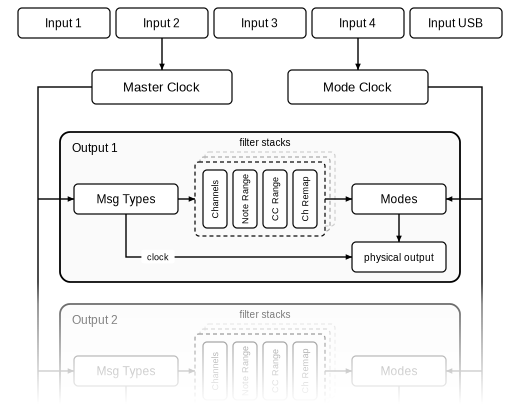
Operator can receive two independent clock streams for different purposes: Master Clock is the input whose pulses are passed on to the outputs, and Mode Clock is the input whose clock the loaded modes follow.
Both reach every output. The Master Clock stream is checked against each output’s Msg Types filter, which decides whether it passes. If allowed, it goes straight to the physical output. In contrast, Mode Clock is sent straight to each mode chain.
6.2 Master Clock
The Master Clock setting is located in the main menu. To update its value, just Change it.
When an input is set as Master, the clock arriving there is distributed to the outputs. In each output, the clock stream is checked against Msg Types and dropped if the Clock message type is unchecked. If the check passes, the stream goes directly to the physical output. An output receives that clock whatever inputs its own routing configuration names.
If Master Clock is set to None, each output takes its clock stream independently. An output holding a single input uses that input’s clock, and an output holding more than one uses the input its Clock Source setting names.
The Master Clock value is stored with the current routing configuration, so it is persisted and recalled with presets.
On the home screen, every input row carries a clock marker, and the marker on the Master Clock input row is drawn whole while the others are drawn broken. Each output column carries one too, drawn whole while a clock stream is leaving that output.

6.3 Mode Clock
Mode Clock is the main menu item directly below Master Clock. Like Master Clock, it is updated with Change.
The input selected as Mode Clock drives the pulse every loaded mode follows. This way the physical outputs stay independent of the modes that need a clock to work.
When Mode Clock is set to Mode, modes can become clock generators. Some modes are capable of generating clock and will do so as Mode Clock is set to Mode. When loaded, a clock-generating mode can provide clock messages that the outputs emit and will set the pace other modes follow. This also suppresses any clock generated by the input set in Master Clock.
Mode Clock is written into the device settings, making it device wide. Preset changes do not alter its value.
Transport messages are different from clock messages, both by definition and in the way the device treats them. No clock stream stops because a transport message arrived. Some of the bundled modes do react to them, which is covered in Chapter 10
6.4 Configuration screen reference
Master Clock and Mode Clock sit together in the main menu, below Presets. Clock Source is shown in each output’s configuration screen.

